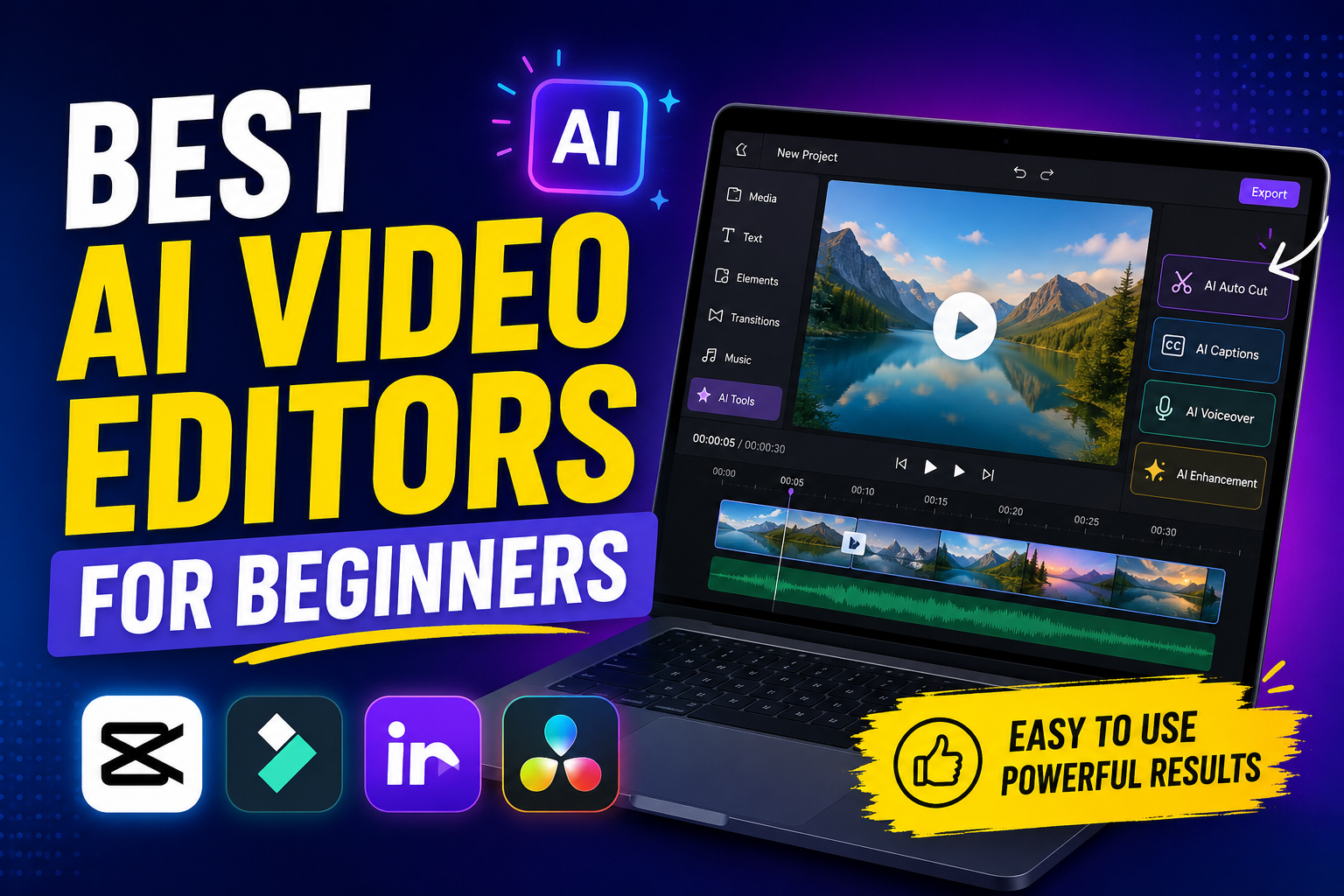
Creating videos used to require expensive software, powerful computers, and hours of editing experience. Beginners often struggled with cutting clips, adding subtitles, adjusting audio, and making their videos look professional. Today, artificial intelligence is making video editing much easier.
AI video editors can automatically generate captions, remove pauses, suggest edits, create videos from text, and help improve audio quality. Some tools can even turn a written script into a video with stock footage, music, and voice narration.
These features are useful for YouTube creators, students, small business owners, teachers, and anyone who wants to make videos without spending weeks learning complicated software.
However, not every AI video editor is suitable for beginners. Some are designed for quick social media videos, while others provide advanced controls for longer projects. Choosing the right one depends on your budget, the type of videos you want to create, and how much control you need.
In this guide, we will explore some of the best AI video editors for beginners, explain their main features, and share practical tips for choosing the right tool.
1. CapCut: Best for Social Media Videos
CapCut is a popular option for people who want to create short videos for YouTube Shorts, TikTok, Instagram Reels, and other social platforms. Its interface is relatively approachable, and many editing tasks can be completed without advanced technical knowledge.
One useful feature is automatic captions. Instead of typing every spoken word manually, you can use speech recognition to generate subtitles and then correct any mistakes.
Depending on the version and your region, CapCut may also offer AI-powered background removal, audio enhancement, templates, and other time-saving tools.
Imagine you have recorded a short tutorial on your phone. You import the video, remove unnecessary sections, generate captions, add a title, and choose background music. Rather than starting from scratch, you can use templates and built-in editing features to finish the video more quickly.
Best for: Beginners, short-form creators, and people editing videos on phones or computers.
Potential drawback: Some features may be limited to paid plans, and availability can differ by device, region, or version. Always check the current pricing before relying on a particular feature.
2. Descript: Best for Editing Talking Videos
Descript takes a different approach to video editing. It transcribes speech and lets you edit much of the recording by working with its text transcript.
For example, suppose you record a ten-minute educational video but make several mistakes while speaking. In a traditional editor, you might need to locate each mistake on the timeline and cut the relevant section. With a transcript-based workflow, you can find the unwanted words in the text and remove the corresponding parts of the recording.
Descript is particularly useful for tutorials, interviews, podcasts, online lessons, and videos where someone speaks directly to the camera. It can also provide AI-assisted tools for tasks such as improving speech audio and removing certain unwanted words or pauses, depending on the available plan and feature set.
For beginners, this style of editing can feel more natural because editing a transcript is often easier than understanding a complicated timeline.
Best for: YouTubers, educators, podcasters, and creators who make speech-focused videos.
Potential drawback: It may not be the best choice for projects that depend heavily on cinematic effects, complex animations, or detailed visual storytelling.
3. VEED: Best for Browser-Based Editing
VEED is a browser-based video editor that allows users to work on videos without necessarily installing a full desktop editing application.
This can be convenient for people who use
different computers or prefer a simple online workflow.
Its features may include automatic subtitles, text overlays, resizing for social media, audio tools, and AI-assisted video creation. The exact tools available depend on the plan and current product version.
Consider a small business owner who needs a short product demonstration. They can upload a recording, add captions, insert the company name, and resize the video for different platforms. A browser-based editor can make these basic tasks easier to manage.
Another benefit is that many operations are organized around familiar controls, such as text, media, and timeline editing. Beginners can learn the basics gradually instead of trying to master every feature at once.
Best for: People who want to edit videos online, add subtitles, and prepare content for social media.
Potential drawback: Uploading and processing videos requires a reliable internet connection. Free-plan restrictions, export limits, or watermarks may also apply, so check the current terms.
4. Runway: Best for Creative AI Video Generation
Runway is worth exploring if you want to experiment with AI-generated visuals rather than only edit footage you have recorded. Its generative tools can help users create or transform video content from prompts and other inputs, depending on the features currently available.
For example, a creator making a short science-fiction story might want an atmospheric shot of a futuristic city. Generative video tools can help create a visual concept without filming a real location. A beginner can then combine the generated clips with narration, sound effects, titles, and other footage.
This can be especially interesting for experimental videos, music visuals, story concepts, and creative projects. However, AI-generated footage may not always match the exact movement, appearance, or consistency you imagine. You may need several attempts to get a usable result.
It is also important to distinguish between generating a video and editing a finished video. You may still need another editor for precise cuts, subtitles, audio mixing, and final assembly.
Best for: Creative experiments, AI-generated scenes, and visual storytelling.
Potential drawback: Generative features can consume limited credits or require a paid plan. Results may also need significant review before publication.
5. Wondershare Filmora: Best for Beginners Who Want More Control
Filmora combines a traditional video-editing timeline with AI-assisted features. This makes it a useful option for beginners who want to learn proper editing while still benefiting from automation.
Depending on the version and subscription, its tools may include AI-assisted trimming, speech-to-text, background removal, audio cleanup, and other editing helpers. These tools can reduce repetitive work, while the timeline allows you to control clip order, transitions, titles, and sound.
Suppose you want to make a five-minute product review. You can arrange your main footage, insert close-up shots, add captions, adjust the audio, and place background music beneath your voice. You retain control over the final result instead of relying entirely on automatic video generation.
This approach is useful because it can help you develop editing skills that transfer to other software.
Best for: Beginners who want to make YouTube videos, tutorials, presentations, and longer projects.
Potential drawback: Some advanced features require payment, and the interface may take longer to learn than a simple template-based editor.
6. InVideo AI: Best for Turning Scripts Into Videos
InVideo AI focuses on helping users turn text prompts or scripts into video drafts.
Depending on the current product version and plan, it may select stock media, organize scenes, generate narration, and assemble a video based on your instructions.
For example, you could prepare a script explaining five useful study habits. An AI video tool can help create an initial sequence of scenes and supporting visuals. You can then review the result, correct the script, replace unsuitable clips, and improve the pacing.
This is convenient when you do not have a camera or your own footage. It can also help beginners understand how a script can be divided into scenes.
Still, automatic video generation should be treated as a starting point rather than a finished product. The chosen visuals may not match every sentence, and narration can sound generic. Always review the final video for accuracy, relevance, and quality.
Best for: Explainer videos, list-based videos, educational content, and script-driven projects.
Potential drawback: Stock footage may feel repetitive if you use the same style for every video. Usage limits and export conditions depend on the plan.
7. Adobe Premiere Pro: Best for Learning Professional Editing
Adobe Premiere Pro is a more advanced option than most beginner-focused tools on this list. It includes AI-assisted features within a professional editing environment, but it may require more time to learn.
It is worth considering if you plan to grow from simple videos into more demanding projects. Premiere Pro provides detailed control over video tracks, audio, color, effects, and export settings.
Some AI-assisted features can help with tasks such as transcription, searching footage, or editing workflows, depending on the current release.
For a beginner, the best approach is to start with a small project rather than trying to understand every panel immediately. Edit a one-minute video, learn how to cut clips, adjust sound, add titles, and export the result.
Once those basics feel comfortable, explore more advanced features.
Best for: Aspiring professional editors and creators who want room to grow.
Potential drawback: It usually involves a paid subscription and has a steeper learning curve than simpler alternatives. It may be unnecessary if you only need basic social media edits.
How to Choose the Right AI Video Editor
Choosing software becomes easier when you start with your actual needs instead of the number of features a tool advertises.
1. Decide What Type of Video You Want to Make
If you mainly create short vertical videos, try a simple editor such as CapCut. If your videos mostly contain interviews or spoken explanations, Descript may suit your workflow better.
If you want to generate scenes from written prompts, explore Runway or InVideo AI.You do not need the same tool for every project.
2. Check the Free Version First
Before paying for an editor, try creating one complete video with its free version or trial, if available. Check whether you can export at your preferred resolution and whether the finished video includes a watermark.
Do not assume that every AI feature is free just because the software offers a free plan. Some tools have separate limits for transcription, generation credits, storage, or export quality.
3. Look for Features That Save You Time
Automatic subtitles, silence removal, audio cleanup, and reusable templates can be particularly valuable for beginners. These features solve common editing problems without requiring extensive technical knowledge.
However, automation does not remove the need for review. Captions may misunderstand names, technical terms, or accents. Music may overpower narration, and automatically selected clips may not fit the topic.
4. Consider Your Computer and Internet Connection
Browser-based editors may be convenient, but uploading large files can take time. Desktop editors may handle local files differently, although demanding projects can require a capable computer.
If you edit on a phone, choose a tool with a comfortable mobile interface. A complicated desktop workflow may not be worth the effort for a simple one-minute video.
5. Check Copyright and Commercial Usage
If you plan to publish videos on YouTube or use them for a business, review the usage rights for stock footage, music, fonts, voiceovers, and AI-generated content. The fact that a tool lets you download an asset does not automatically mean you can use it in every commercial situation.
Also check whether the tool requires attribution or imposes restrictions on certain outputs.
My Practical Advice for Beginners
A common mistake is to spend too much time comparing editing tools and not enough time making videos. You can learn more from completing three small projects than from watching hours of software comparisons.
Start with a short video of around 30 to 60 seconds. Use a simple script, record your voice or footage, add captions, and include only a few visual elements. Export the video and watch it from beginning to end.
On your next project, improve one thing. Perhaps the captions need better timing, the voice is too quiet, or the opening takes too long. Fixing one specific issue at a time makes learning less overwhelming.
It is also useful to keep a basic checklist for every export:
- Is the first few seconds interesting?
- Are the captions accurate and readable?
- Can viewers hear the narration clearly?
- Do the visuals match what the narration says?
- Is the music licensed for your intended use?
- Does the video look correct on a phone?
- Have you checked the exported file before publishing?
These small checks often make a bigger difference than adding more effects.
Remember that an AI editor cannot automatically make every video engaging. A clear idea, useful information, good pacing, and relevant visuals still matter. AI can reduce the effort required for repetitive tasks, but your decisions determine whether the final video is worth watching.
Common Mistakes to Avoid When Using AI Video Editors
Publishing without checking the result:
AI tools can create incorrect captions, awkward cuts, or irrelevant scenes. Review the entire video before uploading it.
Using generic visuals for every topic:
Repeating the same stock clips can make a channel feel impersonal. Add your own recordings, original graphics, or examples whenever possible.
Ignoring audio quality:
Viewers may tolerate simple visuals, but unclear speech can make a video difficult to follow. Keep narration understandable and background music at a reasonable level.
Buying too many subscriptions:
Beginners rarely need several paid editors at once. Start with one tool and upgrade only when you encounter a real limitation.
Assuming AI-generated content is automatically original:
Review the accuracy, licensing, and value of your content. Add your own explanation, examples, and perspective rather than publishing unedited automated output.
Final Verdict
The best AI video editor for beginners depends on what you want to create. CapCut is a sensible starting point for short social media videos.
Descript is useful for speech-focused content, while VEED is convenient for browser-based editing. Runway is interesting for AIgenerated visuals, Filmora offers a balance between automation and control, and InVideo AI can help turn scripts into initial video drafts. Premiere Pro is a stronger option for people who want to develop professional editing skills over time.
My recommendation is to choose one tool that matches your main type of content, learn its basic features, and complete a few small projects before paying for additional software.
You do not need expensive equipment or advanced editing skills to begin. Start with a clear idea, use AI to simplify repetitive tasks, and take time to review your finished work. With regular practice, you can gradually create videos that look cleaner, sound better, and communicate your message more effectively.
The goal is not to let AI do everything. It is to use AI as a helpful assistant while you remain responsible for the quality and originality of your videos.