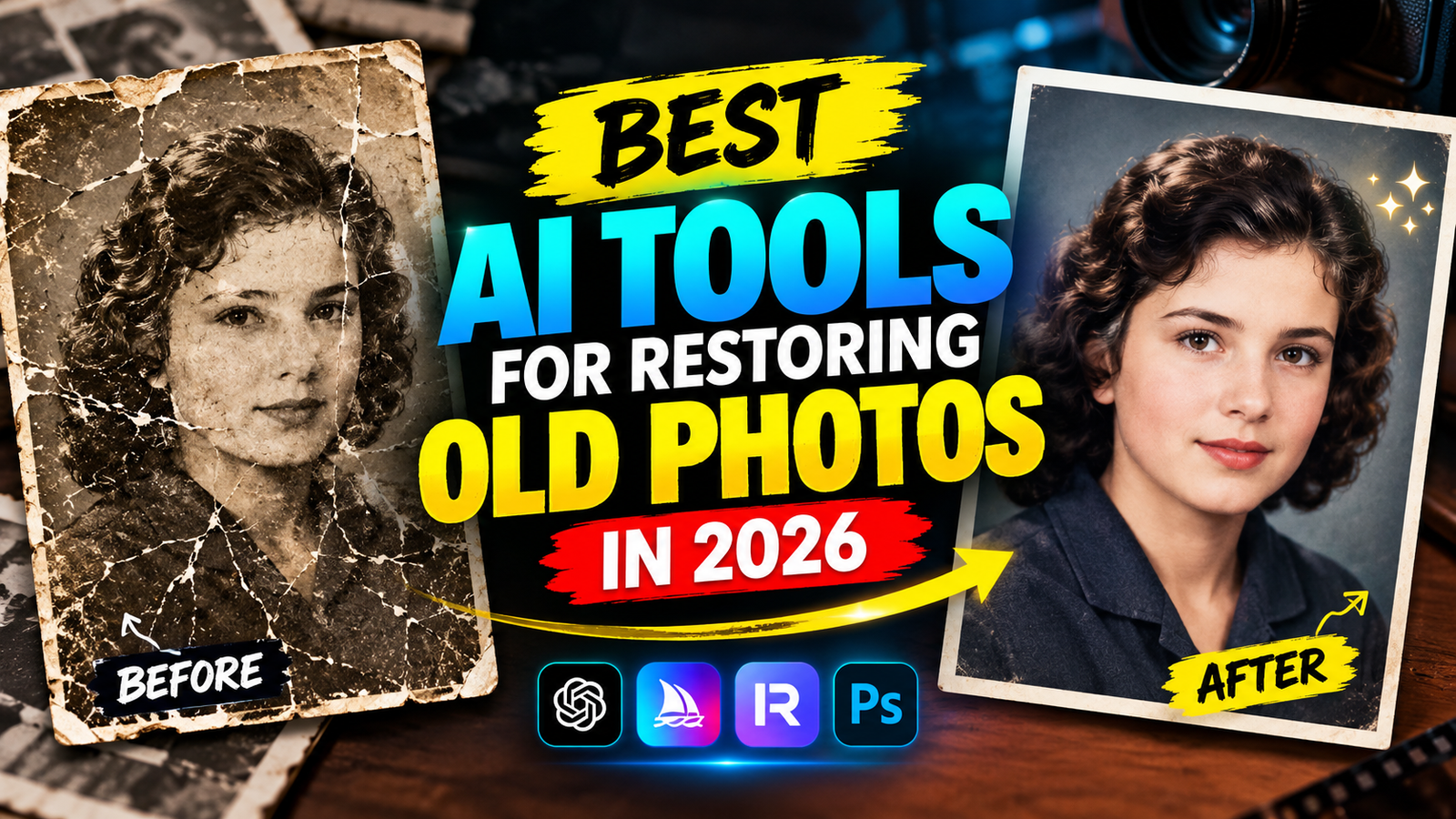
Old photos have a different kind of value. A picture from twenty or thirty years ago may not be perfect, but it can hold a memory that you simply cannot replace. The problem is that old photographs often become damaged over time. They may have scratches, faded colors, dust, stains, blurry faces, or low resolution.
A few years ago, restoring these pictures usually required Photoshop skills or professional photo-editing software. Today, AI has made the process much easier.
With modern AI photo restoration tools, you can upload an old image and let artificial intelligence detect scratches, improve faces, sharpen details, remove noise, and sometimes even add realistic colors.
I have tried different AI-based photo tools for this type of work, and one thing became clear pretty quickly: not every AI photo restoration tool produces the same result. Some are excellent at repairing faces, while others are better for colorizing black-and-white photographs or increasing resolution.
In this guide, I’ll explain some of the best AI tools for restoring old photos in 2026, what each tool is good at, and how beginners can use them without spending hours learning complicated editing software.
Why Use AI to Restore Old Photos?
Traditional photo restoration can be surprisingly difficult.
Imagine you have an old family photograph with several scratches across someone’s face. If you try to fix those scratches manually, you may have to spend a long time using Photoshop’s healing and cloning tools.
AI takes a different approach.
It analyzes the image and tries to understand what the damaged areas should look like. It can then reconstruct missing details based on patterns it has learned from thousands or millions of images.
For simple damage, the results can be impressive.
AI can help with:
- Removing scratches
- Reducing image noise
- Improving sharpness
- Restoring faded details
- Enhancing faces
- Increasing image resolution
- Repairing damaged areas
- Colorizing black-and-white photos
- Improving contrast
- Making old photos easier to print
However, AI restoration isn’t magic.
If a face is completely missing from a photograph, the AI may generate details that were never actually present.
That’s why you should always compare the restored version with the original.
1. Remini
Remini is one of the easiest tools for beginners who mainly want to improve old or blurry photographs.
Its biggest strength is face enhancement. If you have an old family photo where people’s faces are difficult to see, Remini can often make them look much clearer.
The process is simple. You upload your image, choose the appropriate enhancement option, and let the AI process it.
I particularly like this type of tool for old portrait photographs because you don’t need to understand complicated editing settings.
What Remini Is Good For
- Blurry faces
- Old portraits
- Low-quality photos
- Face enhancement
- Quick mobile restoration
The Problem
There is a downside to strong AI enhancement.
Sometimes the tool can make a face look too perfect. The result may be sharper, but it might not represent exactly what the original person looked like.
For personal memories, I recommend keeping the original photograph and treating the AI version as an enhanced copy rather than a replacement.
2. Adobe Photoshop
Adobe Photoshop has traditionally been one of the most powerful tools for photo restoration, and its AI-powered features make it even more useful.
Photoshop is a better choice if you want more control over the final image.
Instead of simply uploading a photograph and pressing an enhancement button, you can combine AI features with traditional editing tools.
For example, you can repair a damaged area using AI-assisted features and then manually adjust brightness, contrast, color, and sharpness.
This is useful when you are restoring an important family photograph and want to carefully control the result.
Photoshop Is Best For
- Serious restoration work
- Removing damaged areas
- Detailed editing
- Color correction
- Combining AI and manual editing
- Professional results
The Downside
Photoshop has a learning curve.
If you have never used photo-editing software before, the interface can feel overwhelming.
For someone who simply wants to improve one old family photo, a simpler AI tool may be more convenient.
For someone who wants to learn photo restoration seriously, Photoshop is worth learning.
3. MyHeritage Photo Enhancer
MyHeritage has several tools focused on old family photographs.
This makes it particularly interesting for people who are restoring historical family pictures.
Its photo enhancement features are designed to make faces in old photographs clearer.
If you have a photograph of grandparents, great-grandparents, or other relatives where facial details have become difficult to see, this type of AI enhancement can make a noticeable difference.
One thing I like about this approach is that it is focused heavily on family-history use rather than being a general-purpose photo editor.
Best For
- Family photographs
- Historical pictures
- Old portraits
- Face enhancement
- Genealogy projects
One Important Tip
Don’t judge the result only by sharpness.
Sometimes an AI-enhanced face looks clearer but slightly different from the original. When restoring historical photos, preserving authenticity is more important than making the image look ultra-HD.
4. Fotor
Fotor is another beginner-friendly option.
It combines traditional photo editing with AI-powered enhancement features, making it useful if you want to do more than simply restore an image.
For example, you might upload an old photograph, improve its quality, adjust the brightness, remove some imperfections, and then make additional edits.
The advantage is convenience.
You don’t necessarily need separate tools for every small adjustment.
Fotor Can Help With
- Image enhancement
- Sharpening
- Noise reduction
- Color improvement
- Basic photo editing
- AI image enhancement
It’s a good choice for beginners who want a simple online workflow.
5. Let's Enhance
Let’s Enhance focuses heavily on improving image quality and increasing resolution.
This can be useful when an old photograph is relatively small and you want to print it at a larger size.
For example, imagine you have an old scanned photograph that is only 800 pixels wide. Printing it at a large size could make it look blurry.
An AI upscaling tool can attempt to increase the resolution while preserving or reconstructing details.
Best For
- Upscaling
- Low-resolution photos
- Printing
- Improving image quality
- Enlarging old photographs
However, remember that increasing resolution does not magically recover every original detail.
The AI is estimating some of the missing information.
6. VanceAI
VanceAI offers several AI-powered image enhancement tools.
It can be useful for sharpening, reducing noise, removing blur, and increasing image resolution.
I would consider it more suitable for users who want a little more control than a one-click mobile application provides.
For example, if your old photograph is noisy and slightly blurry, you can experiment with different enhancement options rather than relying on a single automatic result.
Best For
- Image enhancement
- Upscaling
- Noise reduction
- Sharpening
- Improving old digital photographs
7. Picsart
Picsart is popular because it combines AI features with a large collection of traditional editing tools.
If you want to restore an old photograph and then create something with it, Picsart can be useful.
For example, after improving an old family photograph, you could create a framed-style design, social media post, collage, or memory project.
It isn’t necessarily my first choice for serious historical restoration, but it’s useful when restoration is only one part of the project.
8. Canva
Canva is better known as a graphic design platform, but its image editing and AI features can also be useful when working with restored photographs.
Suppose you’ve already restored an old photograph and now want to create a family memory card or photo collage.
Canva makes that part very easy.
For pure restoration, I would generally choose a dedicated photo enhancement tool first. But for turning the restored image into a finished design, Canva can be extremely convenient.
How to Restore an Old Photo With AI
You don’t need advanced editing skills to get started.
Here is a simple workflow that works well.
Step 1: Find the Best Original
Before using AI, find the highest-quality version of your old photograph.
If you have the physical photograph, scan it rather than taking a low-quality picture with your phone.
If possible, use a high-resolution scan.
The better your starting image is, the better your restoration is likely to be.
Step 2: Remove Dust Carefully
If the photograph has large pieces of dust or dirt, you may want to clean the physical photograph carefully before scanning it.
Don’t aggressively rub an old photograph because you could damage it.
If you’re unsure, leave the physical photograph alone and work on the digital copy.
Step 3: Upload the Image to an AI Tool
Choose a tool based on your goal.
If the main problem is blurry faces, try a face-enhancement tool.
If the image is tiny, consider an AI upscaler.
If the photograph is damaged, use a restoration-focused editor.
Step 4: Compare Before and After
This is something beginners often forget.
Don’t automatically assume the AI result is better.
Put the original and restored versions side by side.
Look closely at:
- Eyes
- Nose
- Mouth
- Hair
- Clothing
- Background
- Text
- Small objects
If the AI has changed important details, reduce the enhancement or try another tool.
Step 5: Colorize Only When Necessary
Colorization can make an old black-and-white photograph look completely different.
It can also make it feel more alive.
But colorized images aren’t necessarily historically accurate.
AI doesn’t know the exact color of someone’s clothes, walls, cars, or surroundings unless that information is available elsewhere.
So if you’re restoring a historical photograph, consider keeping the original black-and-white version alongside the colorized version.
AI Photo Restoration Mistakes to Avoid
Don’t Over-Enhance
More sharpening isn’t always better.
If you increase enhancement too much, faces can become unnatural and skin can look plastic.
Don’t Delete the Original
Always keep the original scan or photograph.
Create a separate restored copy.
You may want to try a different restoration method later.
Don’t Trust AI With Important Historical Details
AI may invent missing details.
If you’re restoring a historical document, old newspaper, family photograph, or important record, compare the restored version carefully with the original.
Don’t Expect Miracles
AI cannot perfectly recover information that was never captured.
If half of someone’s face is completely destroyed, any reconstructed details may be AIgenerated guesses.
Can AI Restore Extremely Damaged Photos?
Sometimes.
The result depends heavily on the damage.
A photo with small scratches, dust, faded colors, and moderate blur can often be improved significantly.
But if large sections are completely missing, the AI has less information to work with.
In these cases, the AI may generate something that looks realistic but isn’t necessarily historically accurate.
This is why I always recommend keeping two versions:
Original
and
AI-restored version
That way, you preserve the actual historical record while still getting a cleaner image.
Are AI Photo Restoration Tools Free?
Some AI photo restoration tools offer free features or limited free usage, while more advanced features may require a subscription or credits.
Free tools can be enough for experimenting.
If you only have a few old photographs, don’t immediately subscribe to an expensive service.
Test the free version first.
Upload one or two representative images and see whether the results are actually good enough for your needs.
If you’re restoring dozens or hundreds of photographs, paid plans may become more useful.
Which AI Photo Restoration Tool Should You Choose?
There isn’t one perfect tool for everyone.
If you are a complete beginner and want quick face enhancement, Remini is a convenient option.
If you want professional control, Photoshop is the stronger choice.
If you’re mainly working with family-history photographs, MyHeritage is worth considering.
If you want a simple online editor with AI features, Fotor can be useful.
For increasing the size of low-resolution images, Let’s Enhance or VanceAI can be worth trying.
And if your goal is to turn restored photographs into designs or memory projects, Canva and Picsart are useful additions.
Final Thoughts
AI has made old photo restoration much more accessible.
You don’t need to spend years learning Photoshop before you can improve a damaged family photograph. With the right AI tool, even a beginner can remove some damage, improve blurry faces, increase resolution, and bring faded photographs back to life.
But the most important lesson is that restoration isn’t simply about making an old photo look sharper.
It’s about preserving a memory.
That’s why I recommend taking a careful approach.
Keep the original photograph, make a high-quality digital copy, test different AI tools, compare the results, and avoid excessive enhancement.
For casual restoration, a simple AI app may be all you need. For valuable family photographs or historical images, using multiple tools and manually checking the result is a much better approach.
The technology will continue to improve, but the photograph itself is still the important part. AI should help preserve the memory—not replace it.